Save big on streaming SERVices!

Step 1.
Follow the video to enable developer options
Step 2.
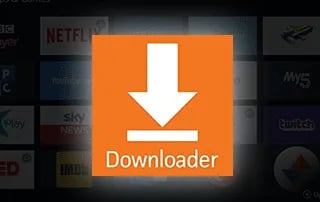
Do a search for downloader. Download and install the app
3. In the address bar above the go button enter 234753 and hit Go. After the Unlinked app is downloaded just click Install. Once the app is installed just click done and then click delete in the downloader app to remove the installation files.
Use downloader to get the TiViStream app store
Once Unlinked is setup enter TIVISTREAM library code to get the apps. Download the TiViStream TV app, Notflix , and VPN app.
Once apps are downloaded and installed, hold home button on remote down til a menu pops up. Then click apps, Take each of the new apps one at a time and highlight them, hold middle button on the remote and click move, move each app to top left so they appear on home screen.
TiViStream Tivimate setup
Project title
Step 1
You will see a pop up. simply hit settings button on the pop up then when prompted just allow the TiViStream app to display over other apps.
Adding playlist
Step 2
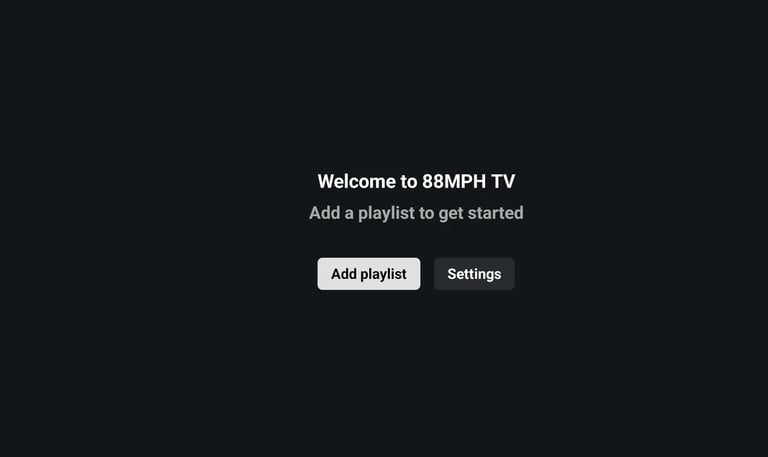
Next click Add playlist button. Then select your service from the menu.
Adding login
Step 3
Enter your provided username and password from your activation email that is also in your customer portal under your services, This is not the same credentials to access the portal.
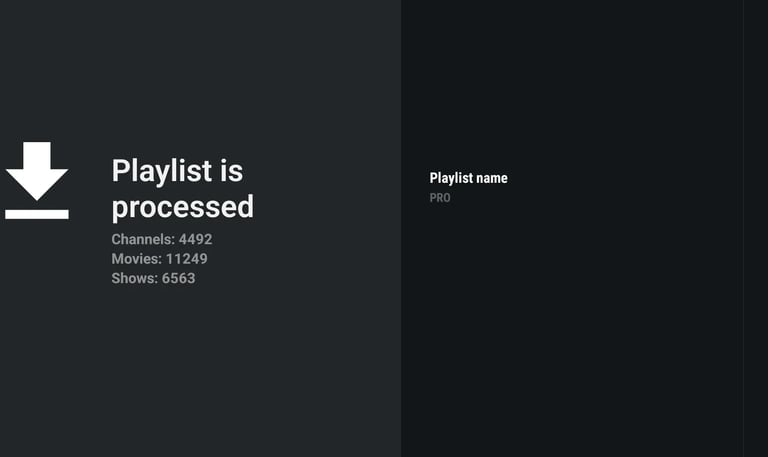
Processed
Step 4
Once the correct login credentials are entered the playlist will process. once it's done simply click done.
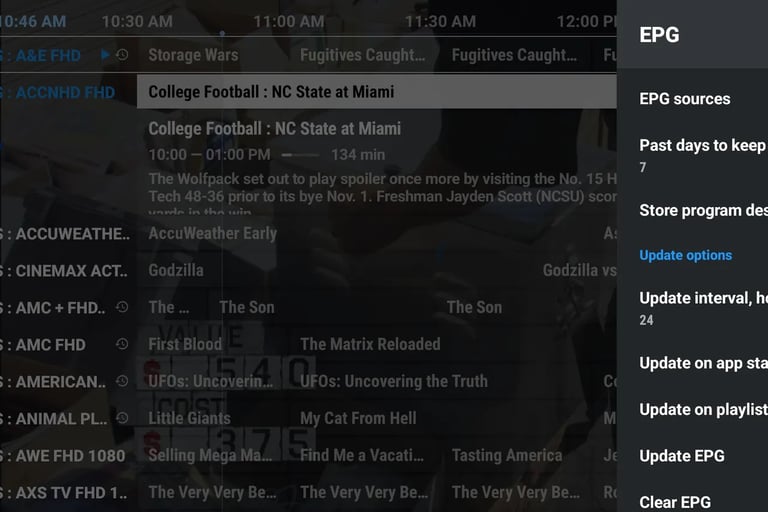
To ensure the TV guide updates properly go to settings in the app, then click EPG and select update on app start.
Brand
Explore our sleek website template for seamless navigation.
Contact
Newsletter
info@email.com
123-123-1234
© 2024. All rights reserved.